
Knowledge Center
Ontology Browser
What is an ontology? #
An ontology is a structured way to represent knowledge by defining key terms and the relationships between them. An ontology builds upon a controlled vocabulary by standardizing terms and organizing information into a hierarchy to show how concepts are connected.
A taxonomy is a hierarchy that organizes organisms by their scientific classification. In biomedical research, taxonomies help standardize the language used to describe organisms. For example, Escherichia coli (E. coli) is a type of bacteria, which itself is a type of cellular organism. Even more specifically, Escherichia coli is a species of Enterobacterales, which is an order of Gammaproteobacteria, which is a class of Pseudomonadota, and so on.
In a taxonomy, a “parent” term is a more general term that includes other more specific terms. A “child” term is a more specific term that falls under a broader parent term. “Sibling” terms share the same parent and are considered conceptually related at the same level. In the above example, Bacteria is a parent term of Pseudomonadota because it is above it in the hierarchy. Pseudomonadota is a child term of Bacteria because it is below it in the hierarchy. Pseudomonadota and Acidobacteriota are sibling terms because they are at the same level in the hierarchy (they are both immediate child terms of Bacteria).
What is the Ontology Browser? #
The NIAID Data Ecosystem Ontology Browser helps researchers explore biomedical ontologies and controlled vocabularies to find related datasets and resources. Currently, the Ontology Browser only supports searching by taxa (e.g., genus, species, subspecies) and does not yet allow browsing by disease terms.
When would I use the Ontology Browser? #
Use the Ontology Browser to:
- Find datasets related to a very specific pathogen species.
- Refine your search results by finding broader or narrower terms to use.
- Explore related terms that might return other relevant results.
For example, if you were searching for tuberculosis datasets, you could use the Ontology Browser to search according to the exact taxonomic identifier and related terms, like its genus Mycobacterium. This could help you find datasets that specifically reference Mycobacterium tuberculosis complex or are annotated with broader classifications such as Mycobacteriales.
How do I use the Ontology Browser to find and access resources? #
Searching for and selecting terms #
You can browse the entire tree using the dropdown arrows to expand parent terms into child terms. Alternatively, you can use the search bar to find specific terms. Begin by entering your term, and select a value from the dropdown suggestions. For example, beginning to type “rhabdoviridae” and selecting it from the dropdown takes you to that term. To see resources for “rhabdoviridae”, click the term in the tree. This will take you to the search results page. To see results for multiple terms at once, click the plus sign button on the right. This will add the term to your “cart” so you can select more terms. You can remove a term from your “cart” by clicking the same button (which turns from a plus symbol to a minus symbol when selected). Click the “Search resources” button to see all of your results in the NIAID Data Ecosystem. You can change the way your search is performed using the “Match Any” / “Match All” Toggle - see more information on this below. When exploring the tree, you can expand your view to see sibling terms by clicking the dropdown arrow next to a parent term twice. Use the breadcrumbs to select any point up the hierarchy. To only display one level up the hierarchy, click the three dots to “Show parent”. The Configure View button allows you to change the way the tree is displayed. “Enable condensed view” is toggled on by default. Turning this off allows you to see all of the parents for your selected term at once. “Hide terms with 0 datasets” is also toggled on by default. Turning this off allows you to see all of the previously hidden terms that have 0 resources in the NIAID Data Ecosystem.The number next to “ncbitaxon” above the ontology term is the taxon ID from NCBI Taxonomy Browser. When you select a term to search, this taxon ID is used to find dataset matches.
For more taxonomic information about a term, click “View NCBI classification.” This will open the NCBI details about your selected ontology term in a new tab.
Match Any / Match All Toggle #
The Ontology Browser has a toggle that allows you to switch between “Match Any” and “Match All”.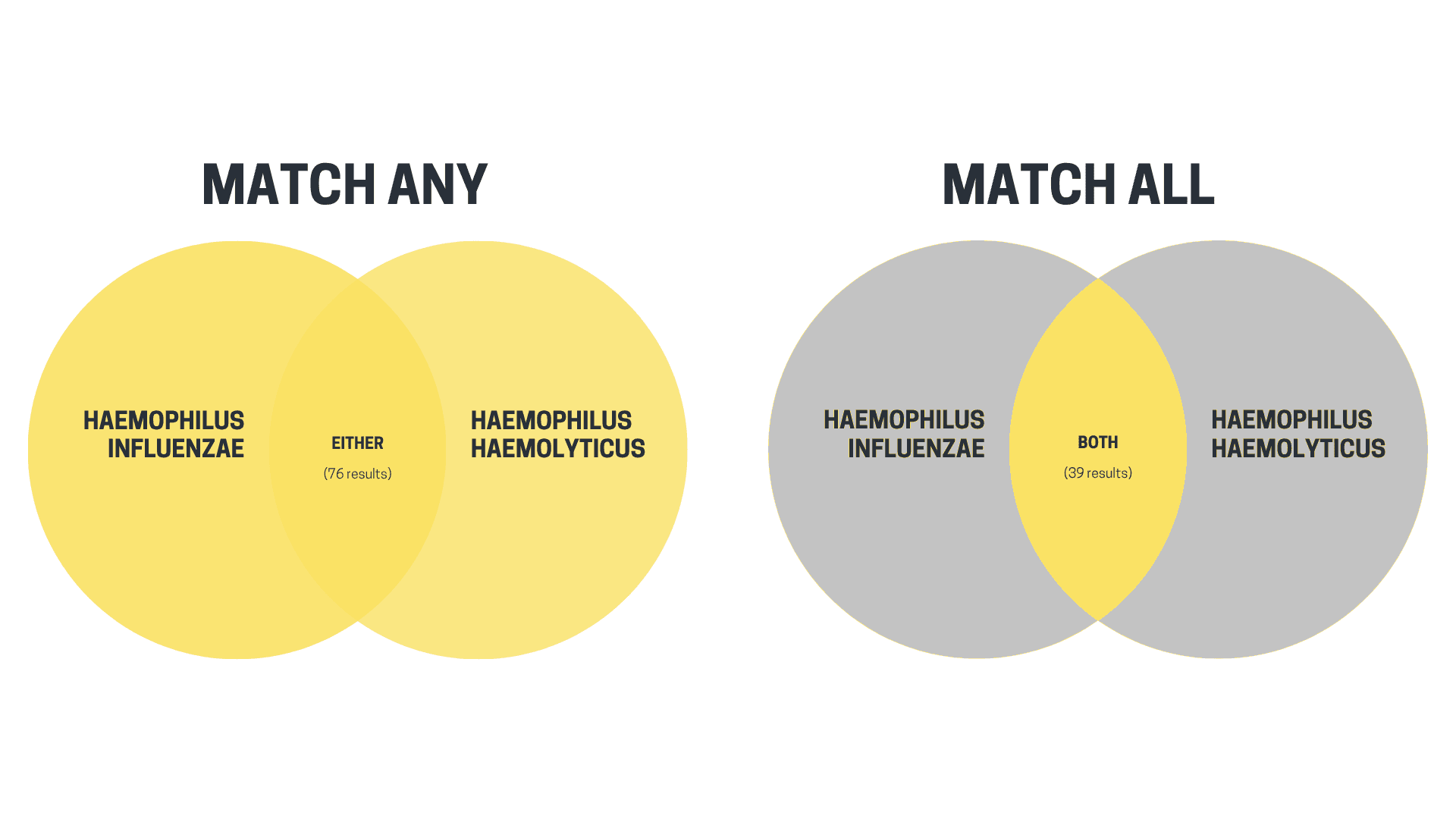
- Use “Match Any” when you want datasets related to any one of several terms. For example, if “Match Any” is toggled and you select "haemophilus influenzae” and “haemophilus haemolyticus”, you will get datasets that reference either. This broadens your results.
- Use “Match All” when you want datasets that meet multiple criteria at the same time. For example, if “Match All” is toggled and you select "haemophilus influenzae” and “haemophilus haemolyticus”, you will get datasets that reference both. This narrows your results.
Interpreting the counts #
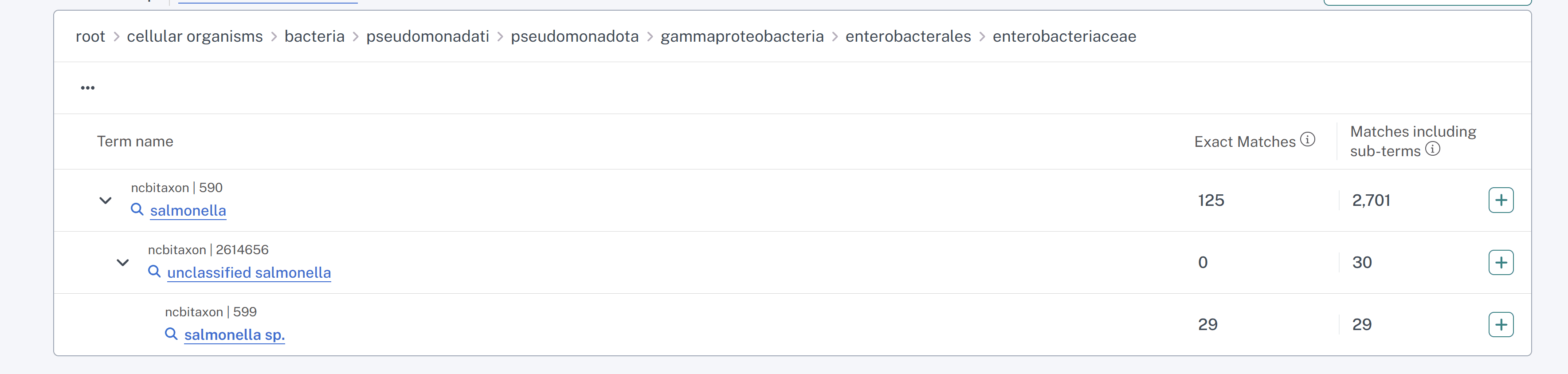
The Ontology Browser provides two sets of counts for each ontology term. The first count is the number of datasets for the exact term in the NIAID Data Ecosystem. For example, clicking “enterobacteriaceae” will give you 53 results. The second number is the number of results for that term plus its child terms. For example, there are 33,491 resources for “enterobacteriaceae” and its child terms. Keep in mind, a single resource could have multiple terms - therefore, if you added up all child term counts you may not necessarily get the same count as the number displayed.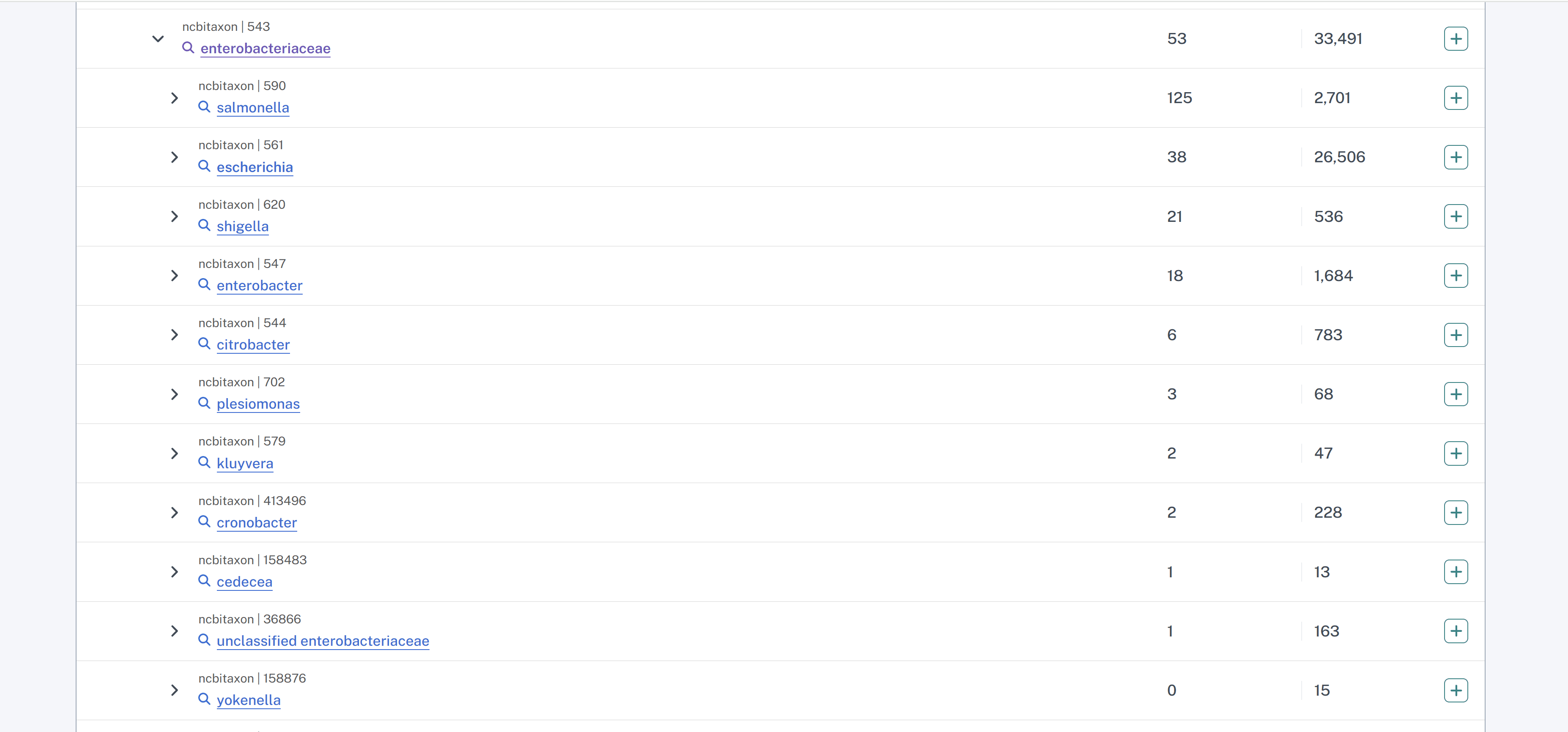 There may be cases where the first number is 0, but the second number has a value. In fact, you may see this frequently. For example, there are no resources in the NIAID Data Ecosystem tagged with “unclassified salmonella”, but there are 6 resources tagged with its child terms, specifically “salmonella sp.”
When to use Search page filters vs the Ontology Browser #
There are times when it may be better to use the filters on the search results page to find datasets and other situations when the ontology browser is more useful. You can also use both tools together. Start with filters and turn to the Ontology Browser when you want to explore related pathogens or form a more complete search. If you apply a Pathogen Species filter, for example “Escherichia coli”, you will see a link appear for “use ontology browser?” Clicking that link takes you to your selected ontology term in the Ontology Browser page.
Key takeaways to get the most out of the Ontology Browser: #
- Use the Ontology Browser to find precise terms instead of general keywords to find datasets tagged with standardized terminologies.
- Use the Ontology Browser to find parent, child, and sibling terms to broaden or narrow your search.
- Combine multiple terms using the “Match Any” / “Match All” Toggle for narrowed searches or broadened searches.
- Pair with filters for best results. Start with search filters, then use the Ontology Browser to explore related terms or more specific terms.
To read more about how to use the Search Page Filters, click here.
Last updated on